
The Linux command line is incredibly powerful. But it's the last thing you want to deal with at midnight when your homelab services decide to crash.
If you are looking for a simple, easy way to manage your servers without the heavy overhead of traditional control panels, you need to check out the Cockpit web console.
Unlike Portainer, which only handles Docker containers, or Proxmox, which is designed for virtual machines, Cockpit acts as a complete, lightweight Linux system manager. It gives you an easy, visual interface to monitor hard drives, check network performance, view system logs, and manage user accounts. Podman provides a simple, visual interface for managing your containers.
We know how to install Cockpit on Ubuntu and secure it. Now, we will see how to set it up to manage your Podman containers.
Add the Podman Extension
Before adding the Podman Extension, we will first log in to Cockpit in the browser using the site below.
https://YOUR_SERVER_IP:9090
To log in, use the exact same username and password you use to SSH into your Ubuntu server. Then open your Cockpit dashboard.
Cockpit handles live CPU and memory graphs, storage setups, network tweaks, and gives you a browser-based terminal.
But its extension system is best for developers and homelabbers. My personal favorite is the Podman extension. Podman is a rootless, daemonless alternative to Docker, and it hooks flawlessly into Cockpit.
Here's how to install it:
sudo apt install cockpit-podman -y
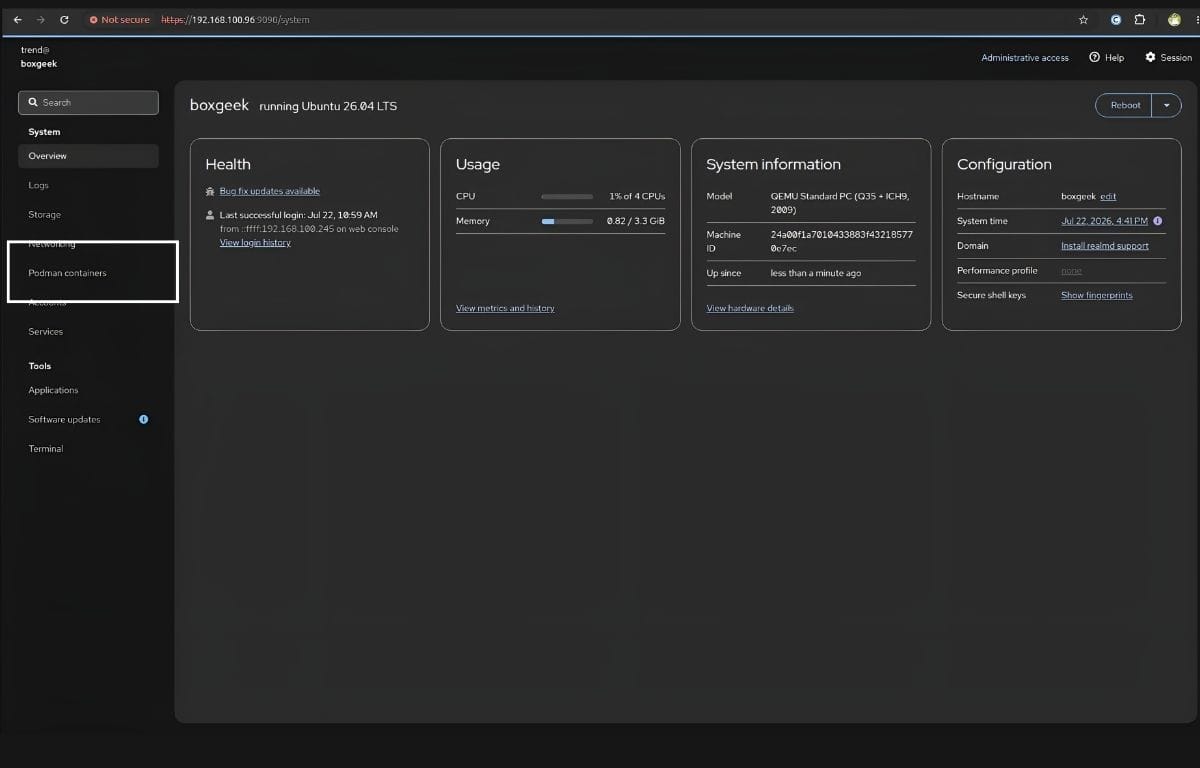
Once you finish, just refresh your Cockpit browser tab. You will see a new Containers tab on the left sidebar, just like the image below.
Now, we will understand how it works.
First, click on Podman containers, then a new panel will open with two options: images and containers. Select New Container. On the new page, enter details like owner and image, then go to the integration section and add port mapping, where you enter your IP and port. You can start, stop, and reboot containers with a click.
Lock Down Root Access
If your Ubuntu setup allows root logins, Cockpit will allow it too. This is not ideal for a web interface. To harden your server, you want to block the root account from accessing the user interface.
Just run this command in your terminal to block root.
echo "root" | sudo tee /etc/cockpit/disallowed-users
Don't worry! You can still log in with your normal user account. Whenever you require root privileges, just use the "Turn on administrative access" switch, which you can see in the top right.
Wrapping Up
Managing a homelab shouldn't feel like a second job. Cockpit gives you the visual control of a heavy web panel with none of the bloat. Pairing it with Podman makes rootless container management simple. When you just want to click a button and get your services running or stopped without opening a terminal, this setup is the best one.
