
If you are building a homelab or if you are managing headless Ubuntu servers in your business, you have to spend countless hours at the terminal. But if you want to manage it easily, then you need the Cockpit web console.
Cockpit covers all monitoring in one place. Cockpit manages the system's health, storage, CPU load, network, and log monitoring in one place and is easy to use.
Here is how to set up the Cockpit web console on an Ubuntu 24.04 server.
Cockpit Installation on Ubuntu
Now we will start installing the Cockpit web console on an Ubuntu 24.04 server. For that, follow the step-by-step method below. For easy installation, connect your Ubuntu server with SSH.
Update Your System
In any Linux distribution, if you want to install any package or tools, the first requirement is to update and upgrade your system. To keep your system up to date, follow the command below.
sudo apt update && sudo apt upgrade -y
Install Cockpit
On an Ubuntu server, installing Cockpit is easy, because it is officially supported and lives right inside the default Ubuntu repositories. No third-party PPAs are needed for installation.
sudo apt install cockpit -y
This installation will take some time, so please wait until it is complete.
Start and Enable the Service
After the installation is complete, run the command below in your Ubuntu terminal. This command ensures that Cockpit automatically starts whenever the server reboots.
sudo systemctl enable --now cockpit.socket
Open Your Firewall
Cockpit communicates over port 9090 by default. If you have UFW enabled on your server, you'll need to let that traffic through. For that, run the command below in your terminal.
sudo ufw allow 9090
Access the Web Console
Open your web browser and navigate to:
https://YOUR_SERVER_IP:9090
Here, replace YOUR_SERVER_IP with your server's IP address. When you paste this into your browser, a page will open like the image below.
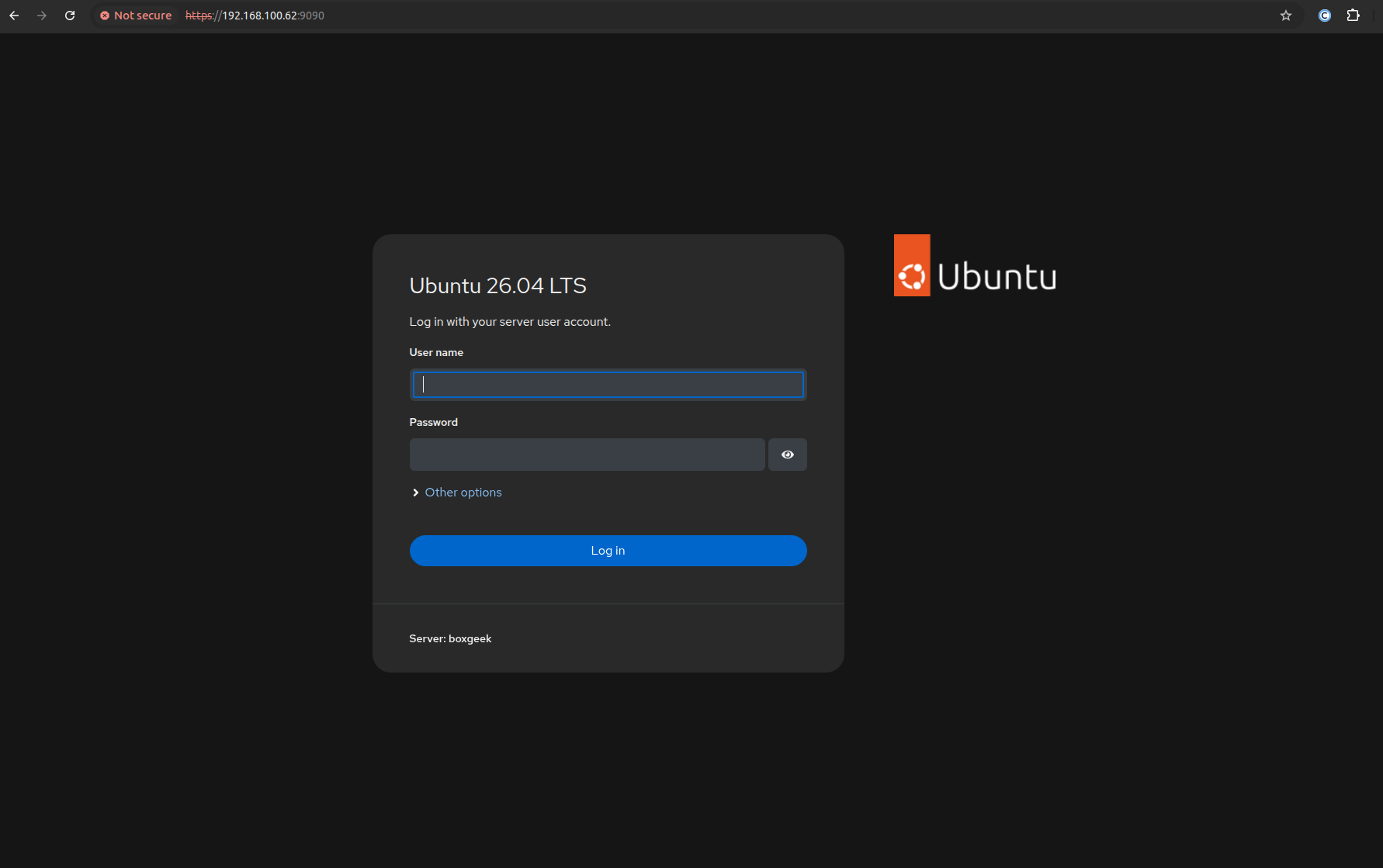
To log into the Cockpit web console, use your standard Ubuntu server username and password that you use to SSH into the machine.
Why Use Cockpit?
The Cockpit web console is easy to use and does not require any deep knowledge. Beginner users can also use it for day-to-day tasks like managing network bridges or formatting drives with just a few simple clicks.
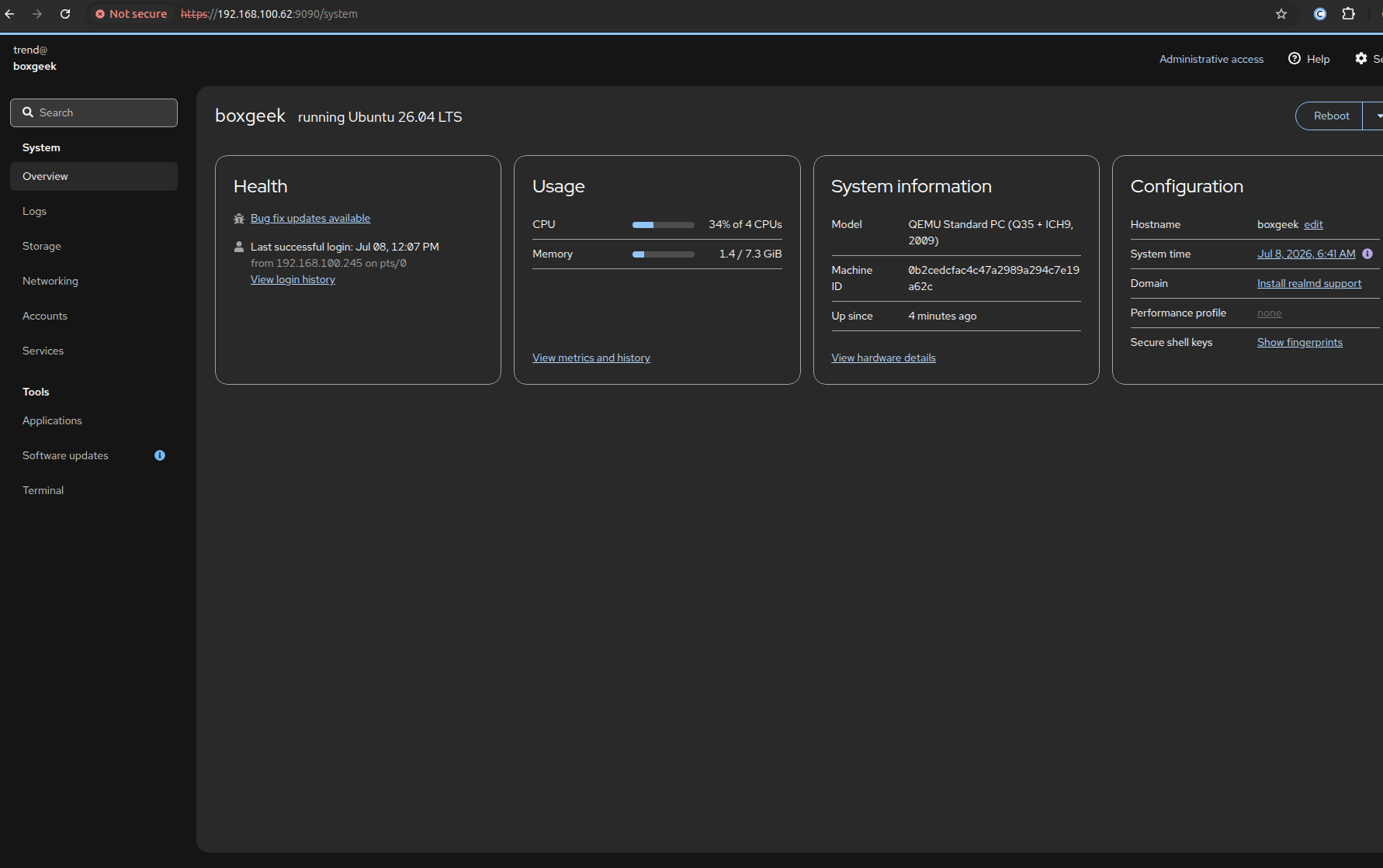
Cockpit is lightweight and will not slow down your system like other heavy control panels do. It runs quietly in the background and works perfectly alongside your usual command-line tools without interfering with them.
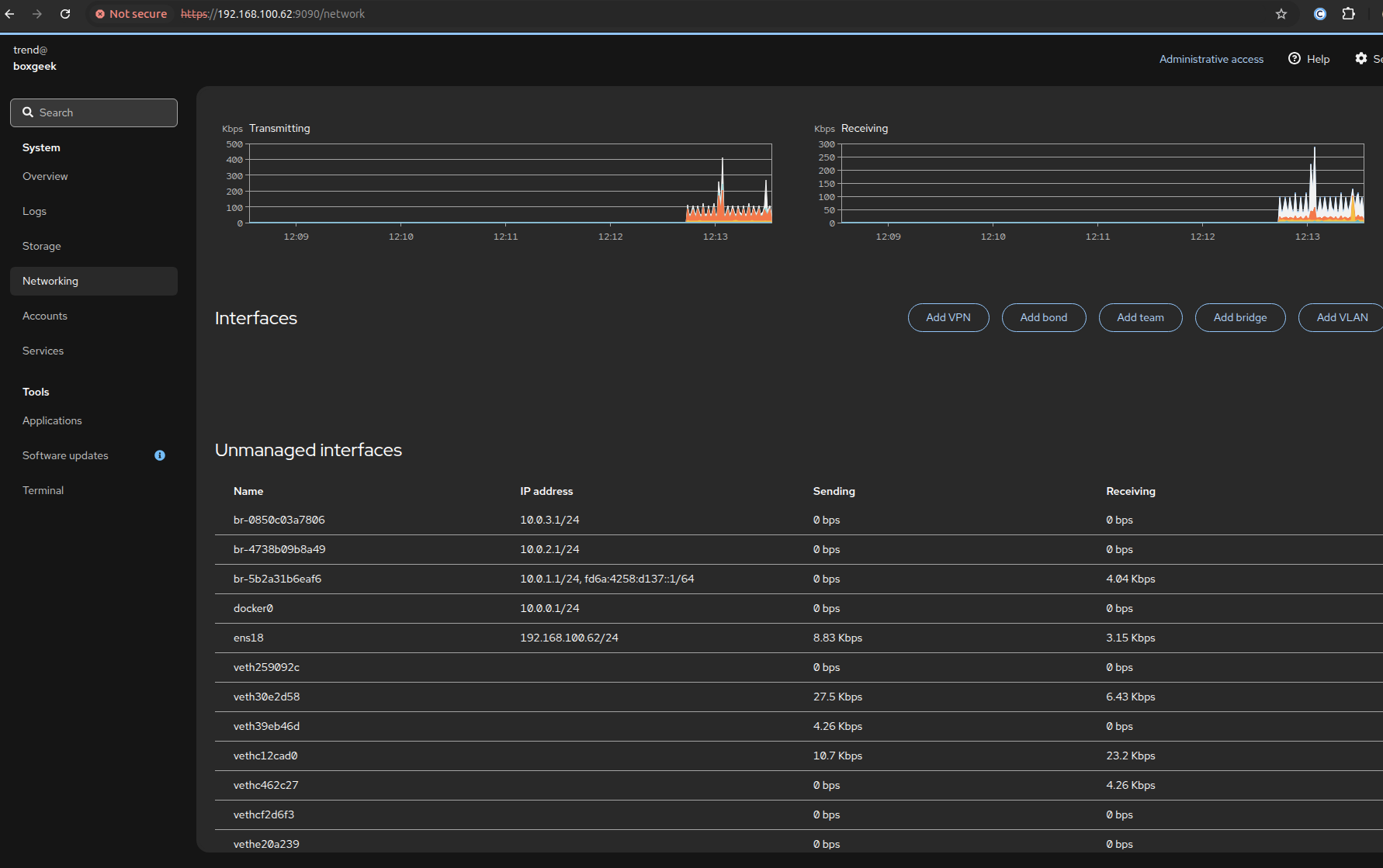
You can see your system's performance instantly. Your web browser will display live updates on how much CPU, memory, storage space, and network data your server is using. When you click on Log, it shows you a live log.
Conclusion
Installing Cockpit Web Console on Ubuntu Server is easy and ideal for monitoring your business or Homelab. The Cockpit web console gives you a clean, lightweight administration interface. You can monitor CPU, storage, networking, logs, and handle the terminal using Cockpit. You can also perform software updates, and all monitoring is done with one click — no extra knowledge or coding knowledge required.
