
You know how it goes when you grab a brand new mini PC or build a rig with the latest GPU, plug in a Debian-based install USB, and… nothing. Just a black screen, or maybe a desktop that can't find your Wi-Fi card. The hardware is just too new for the kernel.
MX Linux 25.3 gets around this with its AHS (Advanced Hardware Support) build. Standard MX 25.3 is built on Debian 13.7, which is stable but still uses an older, conservative kernel. The AHS version swaps that out for the Liquorix 7.2 kernel, Mesa 26.1, and firmware that's actually up to date.
I wanted to see if it actually fixes the hardware headaches, so I loaded the new AHS release onto a homelab box. Here is what it actually gives you under the hood and how to set it up.
The AHS Hardware Stack
The standard MX 25.3 ISO runs on Debian 13.7. That is great for stability, but if you are running a 14th Gen Intel chip, a newer Radeon RX 7000 card, or an Intel Arc GPU, those older drivers are why you are staring at a black screen.
The AHS edition fixes this by aggressively patching the stack. After installing, a quick check in the terminal with inxi -Gx shows exactly what it is doing.
API: OpenGL v: 4.6 vendor: mesa v: 26.1.4-1~mx25ahs glx-v: 1.4
Notice that ~mx25ahs tag? That means you are not running stock Mesa, you have got Mesa 26.1.4.
Most importantly, it ships with the Liquorix kernel. Checking the kernel with uname -r gives you 7.2.6-1-liquorix-amd64 right out of the box.
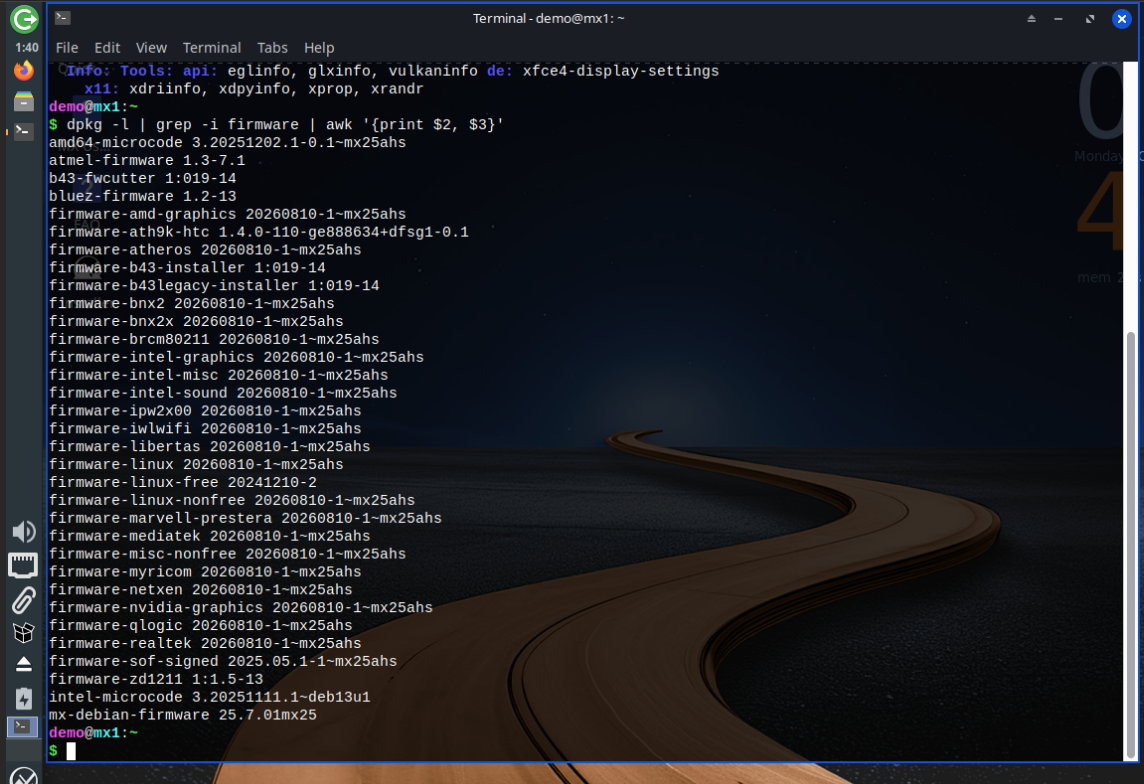
And the firmware? A quick check with dpkg -l | grep -i firmware shows nearly everything from firmware-amd-graphics to firmware-iwlwifi sitting at version 20260810-1~mx25ahs. If you have a new Wi-Fi card, you will definitely need this ISO file to get online during the installation.
Installing MX Linux 25.3 AHS
The process of installing it is similar to setting up a standard MX Linux installation, but if you have newer hardware, you need to catch two things.
Turn Off Secure Boot
The Liquorix kernel is tuned for desktop performance, but it is not signed with Microsoft's keys. If you leave Secure Boot enabled in your BIOS/UEFI, the AHS USB will not boot. Turn it off before you even plug the drive in.
Grab the Right ISO
The AHS version is a separate download. You want MX-25.3_Xfce_ahs_x64.iso (about 3 GB). The standard Xfce ISO won't have the newer hardware support.
When you boot the USB, the menu asks if you want to use sysvinit or systemd. If you are putting this on a homelab box to run Docker or other modern services, go with systemd.
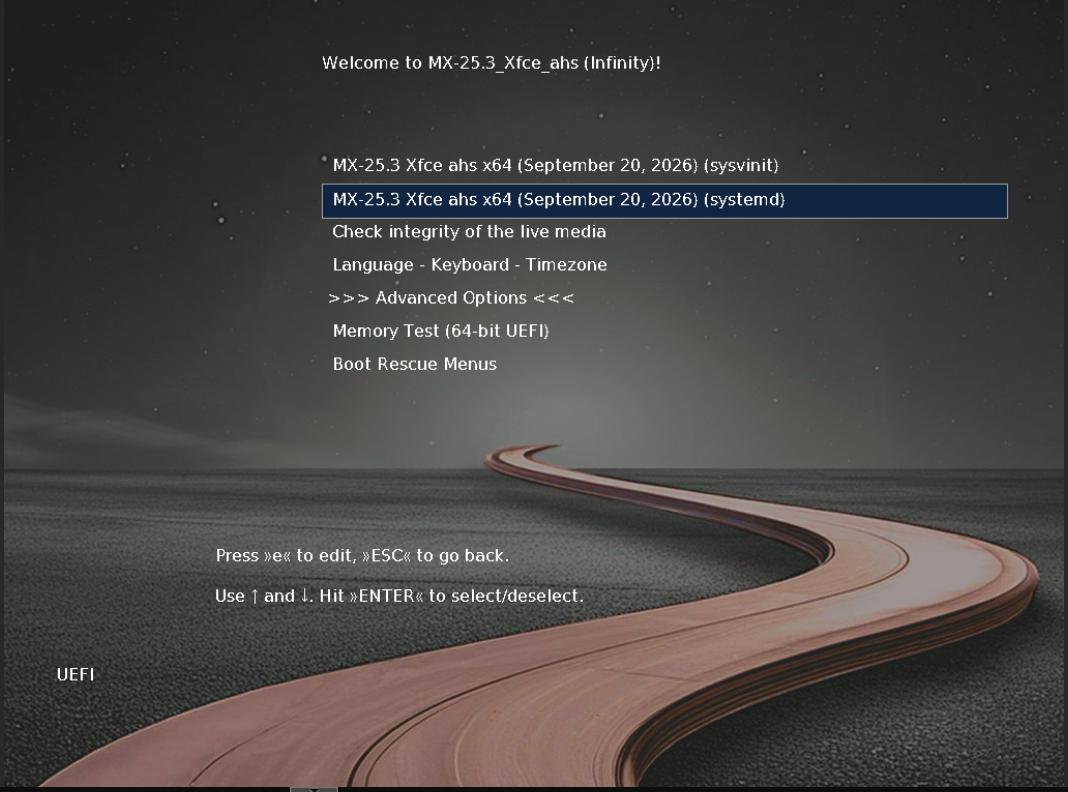
After that, just fire up the installer, wipe the disk, and let it do its thing. It sets up the EFI partitions without any fuss.
Post-Install: The First Upgrade
The real test of an AHS release is not the install, it is what happens when you run the first update. In the past, aggressive hardware repos could get messy when mixed with Debian stable.
To see how MX 25.3 handles it, I ran a full upgrade right after installing.
sudo apt update && sudo apt full-upgrade -y
It didn't break. Instead, the AHS repo pulled in a newer 7.2.9-2 Liquorix kernel and updated the firmware to a September 2026 build (20260916-1~mx25ahs). MX is using the newer deb822 format now (/etc/apt/sources.list.d/mx.sources), and the AHS repo stays prioritized. Your graphics and firmware keep getting updates, while the rest of your system stays on stable Debian.
And if that new 7.2.9 kernel messes something up? MX leaves the original 7.2.6 kernel installed as a backup. You just pick the older kernel from the 'Advanced options for MX Linux' menu in GRUB when you boot, and you're good to go.
