
As a DevOps engineer, life is never easy when managing multiple workloads, and when you get an alert firing at midnight, the absolute worst part is the context switch. When a critical alarm hits your Slack channel, you have to scramble. Your time is burned opening a browser window, logging in, opening the AWS Console, starting a terminal, connecting to a secure server, and finally searching through logs.
While you are doing this, your team is waiting in Slack asking for updates. You have to stop troubleshooting to copy and paste terminal text back into the chat. This process is slow and stressful. When the process is done, reconstructing what happened when you write the incident report later becomes very hard.
On September 11, 2026, AWS dropped a feature that actually fixes this workflow. Now AWS DevOps Agent supports true bidirectional Slack communication. This is not just sending webhooks to a channel so you can read alerts. You can now start, steer, and resolve complex infrastructure investigations directly from a private Slack channel.
I spent a day setting this up on my Proxmox homelab server and ran into every gotcha along the way. Here is exactly what happened, what broke, and how to get it working on your own infrastructure.
What Changed on September 11
Before this update, connecting Slack and AWS DevOps Agent gave us one-way notifications. The Agent would post findings, root cause analyses, and mitigation plans into a channel, but we could not talk back. If you wanted to steer an investigation, you had to jump back into the AWS Console or the DevOps Agent web app.
Now, engineering teams can initiate and manage checks by simply @mentioning the DevOps Agent in any connected private Slack channel. All investigation activities, including team-contributed context, agent findings, and recommended actions, get captured within a single thread. You can ask questions about AWS resources, system metrics, alarm status, and deployment history without leaving the chat.
The agent supports four core capabilities through Slack:
- Investigations Start a new investigation, check status, or send guidance to one
- Infrastructure questions Ask about resources, services, or configuration in your AWS accounts
- Recommendations View, analyze, or act on prevention recommendations
- Release Manager & Testing Review pull requests for risk or run automated release tests
This capability is available in all commercial AWS Regions where AWS DevOps Agent is currently supported.
The On-Prem and Multicloud Angle
If you are running a homelab or a hybrid environment, this update is huge for you.
The AWS DevOps Agent is not locked to EC2 instances. You can register your on-prem Linux servers, virtual machines running in Proxmox or ESXi, or even instances hosted in Azure or GCP as managed instances through AWS Systems Manager.
The DevOps Agent also integrates with a wide range of third-party tools: CloudWatch, Datadog, Dynatrace, New Relic, Splunk, Grafana, GitHub, GitLab, Azure DevOps, ServiceNow, and PagerDuty. You can connect multiple Slack workspaces and associate more than one channel with a single Agent Space.
Prerequisites
Before you start, make sure you have:
An AWS account with IAM permissions to create roles and manage SSM. An on-prem Linux server (this guide uses Ubuntu/Debian). A Slack workspace where you have permission to install apps. A private Slack channel (bidirectional mode only works on private channels).
Install and Configure the AWS CLI
Connect via SSH into the server you want to register with AWS. If that server does not have the AWS CLI pre-installed, install it using the command below.
sudo apt update && sudo apt install awscli -y
Then go to the AWS Console and navigate to IAM. Open your IAM and select your user, go to the Security credentials tab, and click Create access key (choose the CLI option). Then download or copy your access key and secret key to a safe place, as they are required in the next step.
aws configure
Enter your Access Key ID, Secret Access Key, and default region (e.g., us-east-1). Verify the authentication.
aws sts get-caller-identity
Expected Output:
{
    "UserId": "AIDAOOWGAYEQQUK7MVJPP",
    "Account": "036847831234",
    "Arn": "arn:aws:iam::036847831234:user/your.user"
}
Create the IAM Role for Hybrid Registration
Your on-prem VM needs permission to phone home to AWS Systems Manager. Create a trust policy that allows the SSM service to assume a role:
cat << 'EOF' > ssm-trust-policy.json
{
  "Version": "2012-10-17",
  "Statement": [
    {
      "Effect": "Allow",
      "Principal": {
        "Service": "ssm.amazonaws.com"
      },
      "Action": "sts:AssumeRole"
    }
  ]
}
EOF
Now create the role and attach the required managed policy:
aws iam create-role --role-name SSMHybridRole --assume-role-policy-document file://ssm-trust-policy.json
aws iam attach-role-policy --role-name SSMHybridRole --policy-arn arn:aws:iam::aws:policy/AmazonSSMManagedInstanceCore
Generate a Hybrid Activation
This one-time activation code securely links your on-prem VM to your AWS account:
aws ssm create-activation --default-instance-name "your-server-name" --iam-role "SSMHybridRole" --registration-limit 1
Save both the ActivationId and the ActivationCode from the output. You need them in the next step. The activation code is only shown once.
Install the SSM Agent and Register
Download and install the SSM Agent on your Ubuntu server, then register it using the activation credentials. In this command, replace YOUR_ACTIVATION_CODE and "YOUR_ACTIVATION_ID" with your actual values.
wget https://s3.amazonaws.com/ec2-downloads-windows/SSMAgent/latest/debian_amd64/amazon-ssm-agent.deb
sudo dpkg -i amazon-ssm-agent.deb
sudo systemctl stop amazon-ssm-agent
sudo amazon-ssm-agent -register -code "YOUR_ACTIVATION_CODE" -id "YOUR_ACTIVATION_ID" -region "us-east-1"
sudo systemctl start amazon-ssm-agent
If it works, you will see a line like the one below:
Successfully registered the instance with AWS SSM using Managed instance-id: mi-063ddb1dafe69e123
Write down that mi- instance ID in a safe place. This is your server's identity in the AWS world now.
Register Your Slack Workspace in AWS
Open the AWS Console and navigate to AWS DevOps Agent. In the left sidebar, click on Capability Providers. Find Slack under the Communication section and click on Register.
This kicks off an OAuth flow. Sign into your Slack workspace when prompted and click Allow to authorize the connection. Once the authorization completes, you will be redirected back to the AWS Console with a success banner.
Create an Agent Space
In the AWS DevOps Agent console, click Agent Spaces in the left sidebar and then Create Agent Space. Give it a name, let AWS auto-create a service role, and click Create.
Once the space is created, click into it. Scroll down to Sources. Then click Add source to register your hybrid managed instance (the one with the mi- prefix). This gives the agent visibility into your on-prem server.
Link the Slack Channel with Bidirectional Mode
This is the main step where the magic happens, and it is also where you may run into problems. I initially got tripped up here.
In your Agent Space, scroll to the Communications section. Click on the Add button (or Add integration). Select your registered Slack workspace from the dropdown.
Now you need the Slack Channel ID. Open Slack, go to your private channel, click the channel name at the top of the screen, and scroll to the bottom of the details panel. You will see a Channel ID that starts with a C, like C0C7D0LFU5S. Copy it and paste it into the AWS form.
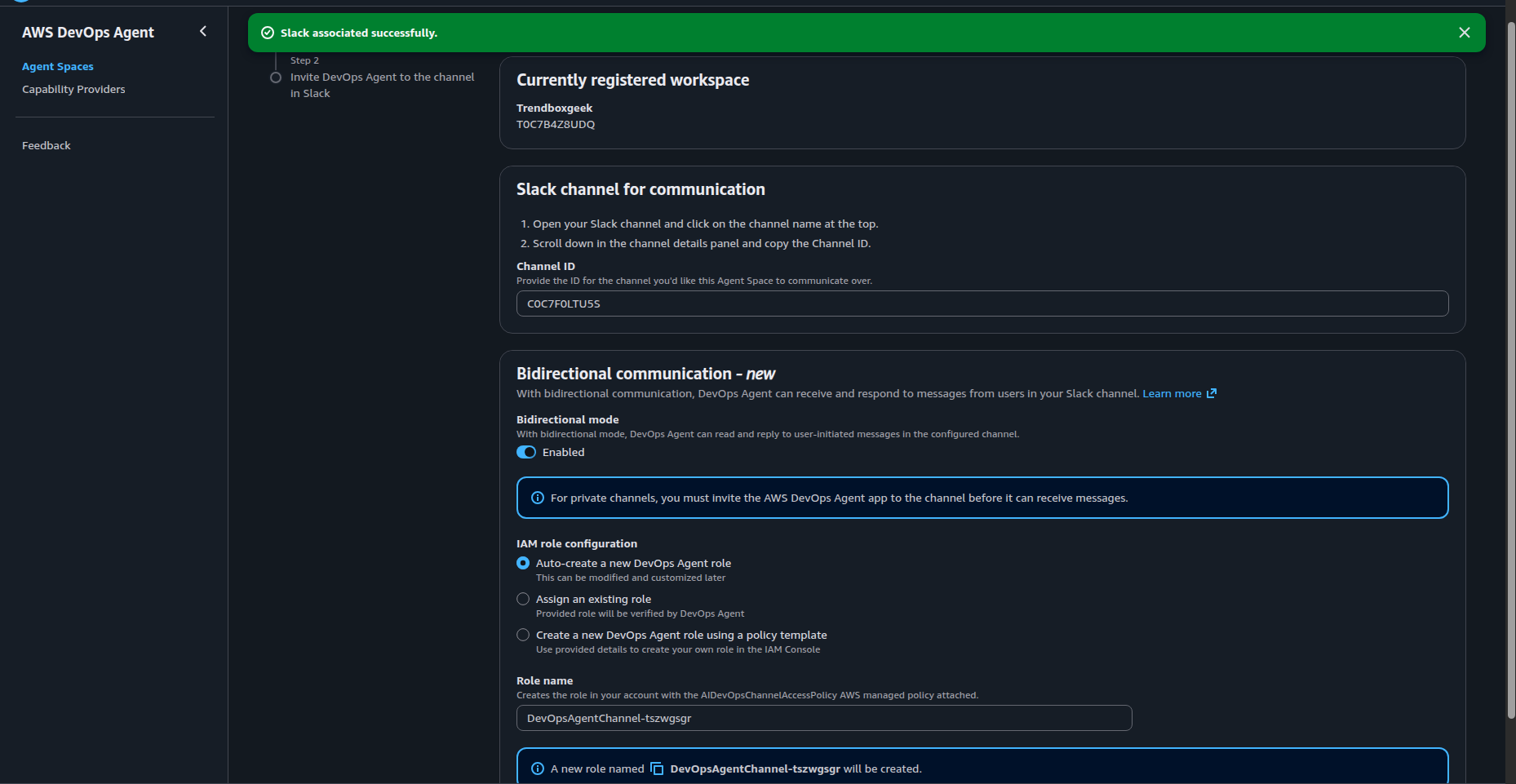
The critical step: Set the 'Bidirectional mode' switch so that it shows Enabled. If you skip this step, the bot will only send one-way messages and will completely ignore your messages.
Under IAM role configuration, select "Auto create a new DevOps Agent role" and Save it.
Verify the integration on the Agent Space page. The Integrations table should show your Slack workspace with Status as Valid and Bidirectional as Enabled.
Invite the Bot and Run the Setup Command
Go back to Slack. Open your private channel. Click on the channel name, go to the Integrations tab, click Add an App, and search for AWS DevOps Agent. Add it to the channel.
Here is the step that the AWS documentation says is mandatory but is easy to overlook. After the bot joins the channel, you need to run a one-time setup command to bind the channel to your Agent Space. Send this as a new message.
@AWS DevOps Agent - US East (N. Virginia) setup
Replace US East (N. Virginia) with the region your Agent Space lives in. The bot will either confirm the binding automatically or show a picker if multiple Agent Spaces are associated with this channel.
Once the setup confirms, you are live. Tag the bot with any question:
@AWS DevOps Agent - US East (N. Virginia) what can you help me with?
The bot will respond in a thread with its list of capabilities.
Gotchas I Ran Into
Setting this up was not perfectly smooth. Here are the issues that tripped me up. Avoid them to save time.
Private channels only: Public channels do not work. The bot will ignore you. Bidirectional chat only works in private channels.
The hidden toggle: The "Bidirectional mode" toggle defaults to disabled. It is very easy to miss. If you skip it, the bot will not respond. You must edit the settings and turn it on.
Saving fails sometimes: The integration might not save on the first try. My setup showed zero integrations at first. I had to click "Add integration" again and re-enter the Channel ID.
Invite commands fail: Typing /invite @botname did not work. It just posted as plain text. I had to use the Slack settings menu to add the app manually.
Real mentions required: You cannot just type the bot's name. You must wait for the Slack autocomplete dropdown. Click the name so it turns into a blue link.
Run the setup command: You must send a final setup command in the channel. Type @AWS DevOps Agent - setup. The bot will not respond to commands without this step.
Troubleshooting
If the bot is in the channel but not responding, the AWS documentation provides this checklist:
- The Slack Channel ID in the AWS Console matches the actual private channel
- Bidirectional mode shows as Enabled in the Agent Space integration settings
- The IAM role created for bidirectional access still exists and has the right permissions
- The regional AWS DevOps Agent app is a member of the private channel
- The channel binding is active
- The correct Agent Space was selected if the setup command showed a picker
- Your message actually @mentions the regional DevOps Agent app (blue linked text, not plain text)
Built-in Post-Mortem Documentation
Fixing a major technical issue is hard, but figuring out what happened afterward is even harder. Usually, exact command histories vanish when terminal windows close. Teams are left guessing who did what and when.
This new tool changes that. It works entirely within a single Slack thread. Because of this, the documentation builds itself. When the next shift takes over, the history is ready. When you write the incident report a week later, the timeline is already there. You can see everything in one continuous scroll. It shows the initial alert, the exact commands the engineer ran, the server's responses, and the team's chat.
Locking Down the Blast Radius
Giving a chat app the power to run remote commands sounds scary. If done wrong, it is a big security risk. AWS fixes this by using strict identity rules through IAM.
Private Channel: You put the DevOps tool only in private, invite-only Slack channels.
Limited Access: Every channel gets its own unique IAM role. You can let engineers view data but block them from deleting things.
Separated Teams: You can split channels across different permission zones. Different teams get different levels of access. Everything stays safe through standard AWS policies.
Cleaning Up After Testing
If you set this up for testing and need to avoid charges, the commands below will help you tear down everything.
aws ssm deregister-managed-instance --instance-id "mi-YOUR_INSTANCE_ID"
aws ssm delete-activation --activation-id "YOUR_ACTIVATION_ID"
aws iam detach-role-policy --role-name SSMHybridRole --policy-arn arn:aws:iam::aws:policy/AmazonSSMManagedInstanceCore
aws iam delete-role --role-name SSMHybridRole
sudo systemctl stop amazon-ssm-agent
sudo dpkg -r amazon-ssm-agent
Then in the AWS Console: First, delete the Agent Space, remove the Slack registration from Capability Providers, and delete the auto-created bidirectional IAM role.
