
If you followed How to deploy an AWS EKS cluster using Terraform, you've got a fresh Kubernetes cluster ready to go. If not, spin that up first. Today, we're ditching manual kubectl apply commands and setting up ArgoCD to handle our deployments the GitOps way. We'll install it, deploy a test app, and intentionally break things to watch ArgoCD's self-healing kick in.
Install ArgoCD on Your Cluster
If your EKS cluster is up and your kubectl is authenticated, then installing ArgoCD is straightforward. We just need to create a namespace and apply the official manifests.
Run this command on your terminal.
kubectl create namespace argocd
kubectl apply -n argocd -f https://raw.githubusercontent.com/argoproj/argo-cd/stable/manifests/install.yaml
Wait a few minutes. You can watch the pods spin up by running kubectl get pods -n argocd. Once everything is running, we are ready to log in.
Extract the Password and Access the UI
In this step, we generate ArgoCD a random password for the admin user. We need to extract that password from the Kubernetes secrets.
kubectl -n argocd get secret argocd-initial-admin-secret -o jsonpath="{.data.password}" | base64 -d; echo
Copy that password and save it safely. Next, we need to access the ArgoCD web interface. We are not exposing this to the public internet yet; we will use a port-forward.
When we run the below command, this process continuously starts. So, for the below command, we open a new terminal and run the command in the background on it. If you close it, you'll lose access to the UI.
kubectl port-forward svc/argocd-server -n argocd --address 0.0.0.0 8080:443
Open your browser and navigate to:
https://YOUR_SERVER_IP:8080
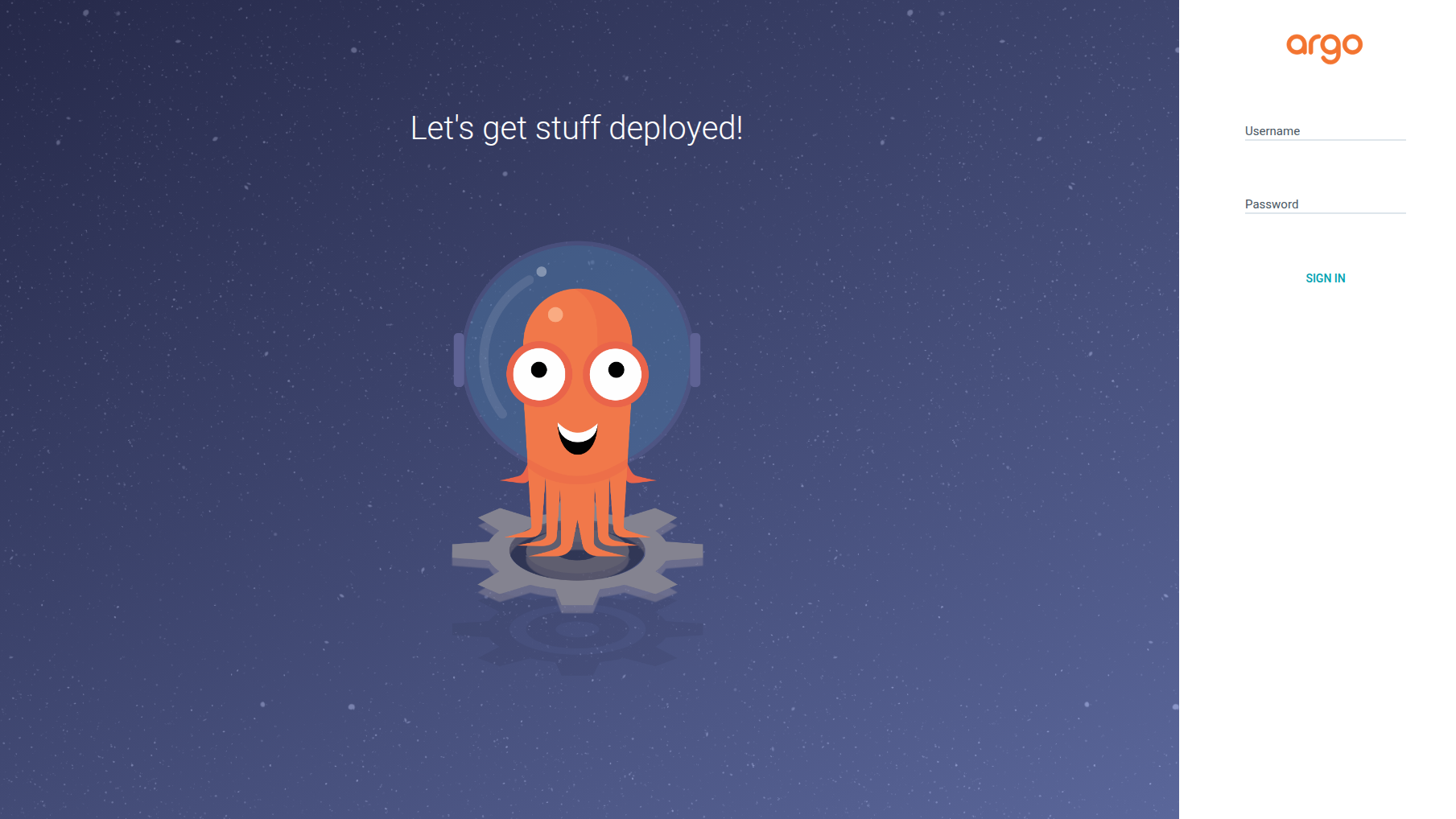
Open the Home Page as shown in the image below and ignore the SSL warning, log in with the username admin, and paste the password you saved earlier.
Deploy the Guestbook App
Now, we are going to deploy ArgoCD's official sample app, "Guestbook".
- In the ArgoCD UI, click + New App.
- Application Name: guestbook
- Project: default
- Sync Policy: Automatic (Make sure to check the Self Heal box!)
- Repository URL: https://github.com/argoproj/argocd-example-apps.git
- Path: guestbook
- Cluster URL: https://kubernetes.default.svc
- Namespace: default
Click Create at the top. You will instantly see ArgoCD fetch the configuration from GitHub and spin up your pods, services, and deployments in real-time.
To view the app, open another terminal window on your machine and forward its port.
kubectl port-forward svc/guestbook-ui --address 0.0.0.0 8081:80
To watch the Guestbook UI live, open the below link in your browser.
http://YOUR_SERVER_IP:8081
Then, you will see the Guestbook UI live.
Testing GitOps Self-Healing
ArgoCD doesn't just deploy your app and forget about it; it actively enforces your Git state. Let's test if this actually works. Kill your port-forward with Ctrl+C and nuke the deployment manually.
kubectl delete deployment guestbook-ui
Come back to your ArgoCD dashboard. For a split second, you'll see the app flag as 'Out of Sync'. But because we checked that 'Self Heal' box earlier, ArgoCD instantly notices the missing deployment and spins it right back up to match the Git repo. No manual intervention, no panic—it just fixes it.
Conclusion
That's it. You've got a working GitOps pipeline on EKS. Moving forward, stop running kubectl apply. Make your changes in Git, push the commit, and let ArgoCD handle the cluster sync.
