
If you're spinning up a new VM in Proxmox or ESXi, setting up a bare-metal homelab server, or deploying a cloud instance, your first step is always getting remote access. Secure Shell (SSH) is the best tool for remote server management. But installing it isn't enough. Leaving default SSH configurations exposed is an open invitation for botnets. So here we understand how to work with SSH.
Here is a guide to installing, configuring, and bulletproofing your SSH server on Debian 13.
Fixing the Missing 'Sudo' Trap
If you just installed Debian, you might have tried to run sudo apt update and gotten hit with "-bash: sudo: command not found."
This is not a bug. If you set a "Root Password" during the Debian server installation, Debian intentionally skips installing sudo and doesn't give your user admin rights.
To fix it, you need to install it and add your user to the group.
First switch to root user using "su -". Then install sudo using apt install sudo -y.
Next add your user to the sudo group using usermod -aG sudo your_username. Then exit from root and back on your normal user using su - your_username.
Install OpenSSH
In any Linux distribution, if we install a new tool, then every time our first step is to update and upgrade our system.
sudo apt update && sudo apt upgrade -y
Now we install the SSH server using the below command.
sudo apt install openssh-server -y
Check that it is running by typing sudo systemctl status ssh.
Expected Output:
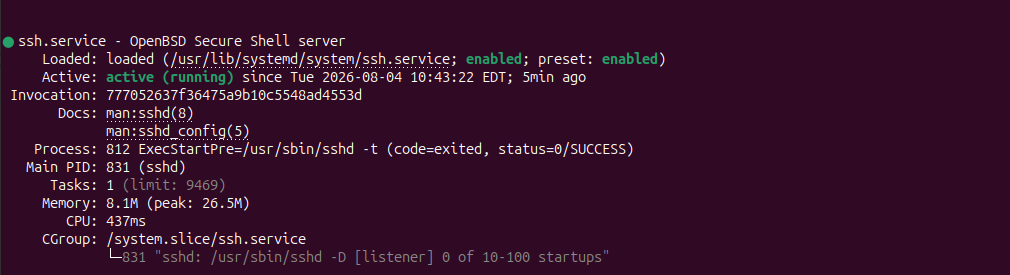
You can press q to exit that screen.
Ditch Passwords for SSH Keys
For server security, some people use passwords, but it is not the best way. Instead of that, we are going to use public key authentication.
Open up the terminal on your personal computer or laptop, but not on your server, and generate an Ed25519 key. Then run the below command.
ssh-keygen -t ed25519 -C "[email protected]"
Here replace your email with "[email protected]". It will ask if you want to set a passphrase. If you hit Enter twice, it skips it, meaning you'll be able to log in to your server without typing a password at all.
Now push that key to your Debian server:
ssh-copy-id user@your_server_ip
Try logging into the server. If you enter without being asked for a password, you are ready to lock your server down.
Hardening the SSH Config
First open up the SSH configuration file.
sudo nano /etc/ssh/sshd_config
We want to change three things here. In the config file, scroll down and find these lines and remove the # at the start of them so they actually apply.
First we move from port 22. Bots always scan port 22. Changing this to something else like 2222 will not stop targeted attacks. But it will stop the useless background noise of automated scripts trying to break in.
Port 2222
Second we kill Root Login. You should never log in directly as root.
PermitRootLogin no
Your SSH key is working, so stop logging in using a password.
PasswordAuthentication no
Save the file using (Ctrl+O, Enter) and exit (Ctrl+X).
Next, restart SSH to apply the rules.
sudo systemctl restart ssh
Set Up Your Firewall
Don't run a server without a firewall. UFW is the easiest way to handle this on Debian. Make sure you allow your new SSH port before you enable the firewall, otherwise you will drop your own connection and lock yourself out.
sudo apt install ufw -y
sudo ufw allow 2222/tcp  # Change this if you used a different port!
sudo ufw enable
The Fail2Ban Port Gotcha
Fail2Ban is a great tool that watches your system logs and automatically blocks IP addresses that fail to log in too many times.
sudo apt install fail2ban -y
Fail2Ban is configured to protect SSH right out of the box. But here is one thing — it only watches port 22 by default. Because we changed our port to 2222 earlier, Fail2Ban is currently monitoring the wrong port.
To fix it, we create a new file.
sudo nano /etc/fail2ban/jail.local
Drop this block of text in there and update the port if you used something else.
[sshd]
enabled = true
port = 2222
Save the file, exit, and restart the service.
sudo systemctl restart fail2ban
Conclusion
You now have a Debian 13 server that is securely accessible, ignores passwords entirely, and automatically bans anyone trying to brute-force their way in. By moving off port 22, fixing the sudo permissions, and using Fail2Ban on your custom port, your server is now more secure.
