
If you have been monitoring Proxmox with Zabbix over the last few years, you probably relied on community scripts and unofficial templates that broke whenever a major update dropped. When Proxmox officially supported Zabbix as a Solution Provider, that changed. The partnership between Proxmox and Zabbix gives a fresh setup for monitoring. Instead of unstable and temporary solutions, they provide native and APT-based integration.
It is completely agentless. It hits the Proxmox REST API directly and uses Low-Level Discovery (LLD) to automatically find all your nodes, VMs, and ZFS pools.
I just deployed on a live Ubuntu/Zabbix 7.4 stack and during the setup, the official Zabbix template has a few annoying traps that will throw errors if you don't know about them. Here is the actual working setup process.
Need to Spin Up Zabbix First?
If you don't actually have a Zabbix server running yet, the fastest way to get one is via Docker Compose. You can spin up the full Zabbix 7.4 stack (Server, Web UI, and PostgreSQL) in a few minutes.
Drop this into your terminal to clone the official repo and start the containers on custom ports (so it doesn't conflict with anything else you're running):
git clone https://github.com/zabbix/zabbix-docker.git
cd zabbix-docker
git checkout 7.4
OS=ubuntu ZABBIX_WEB_NGINX_HTTP_PORT=8282 ZABBIX_WEB_NGINX_HTTPS_PORT=8443 docker compose -f ./compose_pgsql.yaml up -d
Give it two minutes for the dashboard to initialize, then navigate to:
http://[your-ip]:8282
Expected Output:
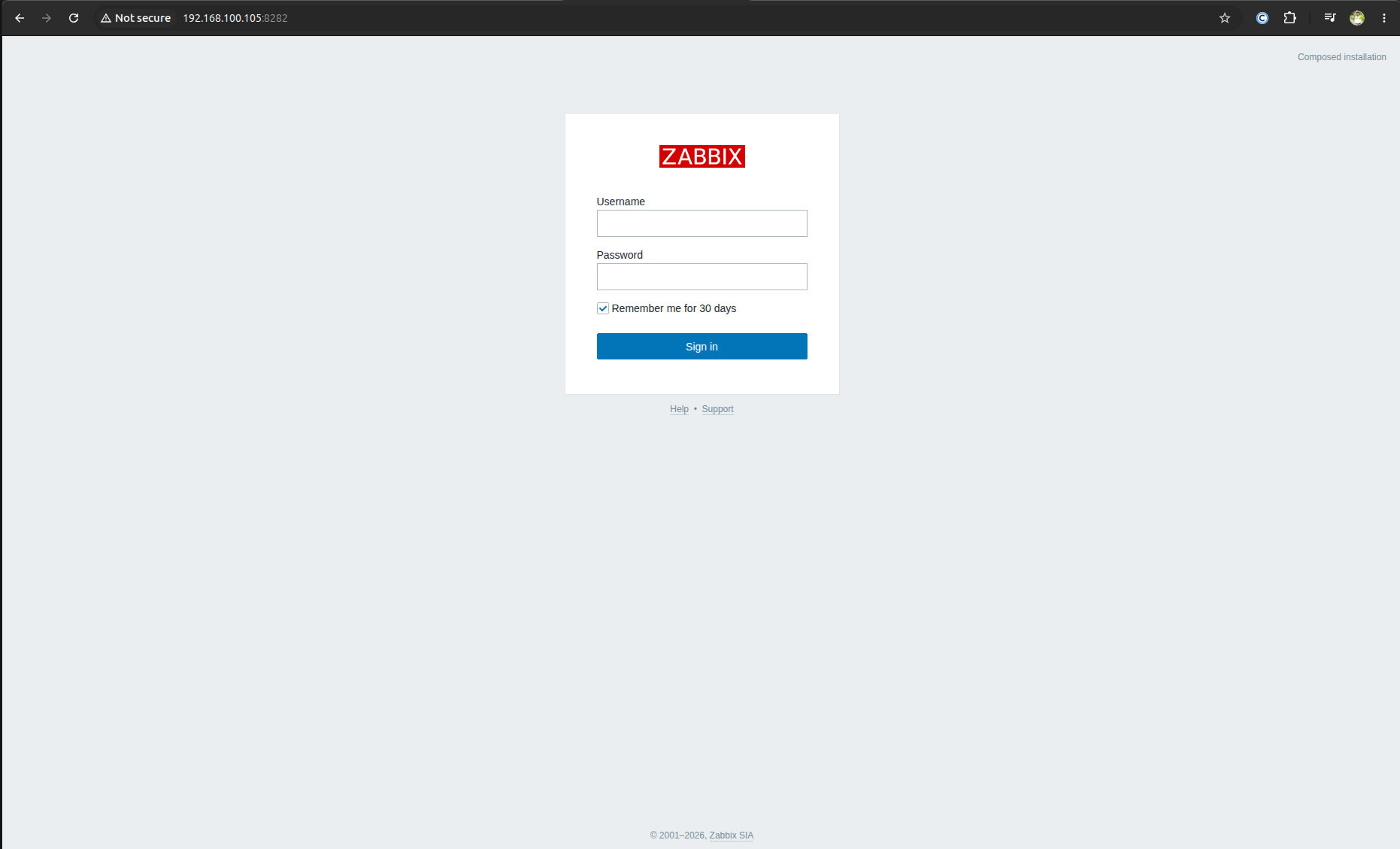
Log in with the default creadentials: Admin and zabbix. Now you are ready to wire up Proxmox.
Create a Read-Only API Token
You need a dedicated user and API token so Zabbix can pull metrics safely. You can do this in the Proxmox web UI in the Datacenter GUI, but dropping these commands into your Proxmox terminal is faster.
sudo pveum user add zabbix@pve
sudo pveum acl modify / -user zabbix@pve -role PVEAuditor
sudo pveum user token add zabbix@pve zabbix-monitoring --privsep 0
Copy the token ID (it will look like zabbix@pve!zabbix-monitoring) and the long secret UUID. Save them somewhere safe, because Proxmox will only show you that secret once.
Configure the Zabbix Host
In your Zabbix web UI, go to Data collection > Hosts and create a host. Give it a name and select the Proxmox VE by HTTP template.
Now, if you just save it here, it's going to fail. You will get a "URL rejected: No host part in the URL" error in your Zabbix logs.
The Fix (Trap 1): Even though this template uses the HTTP API, Zabbix still demands a dummy host interface to resolve its internal macros. Under the Interfaces section, click Add > Agent and put in your Proxmox server's IP address. Just leave the port at 10050.
The Macros (Trap 2): Jump over to the Macros tab. If you are using Zabbix 7.x, the old {$PVE.URL} macro is gone. They split it into two separate fields. You have to manually add these four macros for the connection to work:
* {$PVE.URL.HOST} : Your Proxmox IP (e.g., 192.168.100.200)
* {$PVE.URL.PORT} : 8006
* {$PVE.TOKEN.ID} : The token ID from earlier
* {$PVE.TOKEN.SECRET} : Your secret UUID
Hit Update. Give it about a minute, then check Monitoring > Latest data. Your CPU, memory, and storage metrics should be populating.
Field Notes for Production
This setup relies on Zabbix's Low-Level Discovery (LLD), which automatically finds every VM and LXC container on your host. That is awesome, but it's also incredibly noisy right out of the box.
If you run a homelab with test VMs that stay powered off, your Zabbix dashboard is going to light up with "Not running" alerts. It also checks for the QEMU Guest Agent. If a guest does not have it installed, you get an "Agent is not enabled" warning. You have to manage this noise. Go into your triggers and manually disable or acknowledge the alerts for those offline machines. If you don't, these false alarms will completely bury your real problems.
