
If you have built a web project, then you may have used Vercel. It is awesome for that "git push and deploy". But when your projects grow, you face high costs. I also faced this problem when I used Vercel.
The best part about platforms like Vercel is that you don't have to think about deployments. You push a commit to GitHub, and your live app just updates. No SSHing into servers, no running manual Docker commands, no messing with terminal windows.
You can get that exact same workflow on your own server by using Portainer's built-in GitOps feature. We already covered how to install Portainer on an Ubuntu server in Part 1. Now, let's set up the auto-deploy pipeline.
Prep Your GitHub Repository
First, we need a GitHub repository with a docker-compose.yml file sitting in the main folder. If you are just testing this out, a basic Nginx compose file is all you need.
Connect GitHub to Portainer
Open your Portainer dashboard using your server IP and port 9443. Log in to Portainer. On the left-hand sidebar, click on Stacks, and then hit the Add stack button. At the top of the page, select the Repository option. Fill out the options to match the image below.
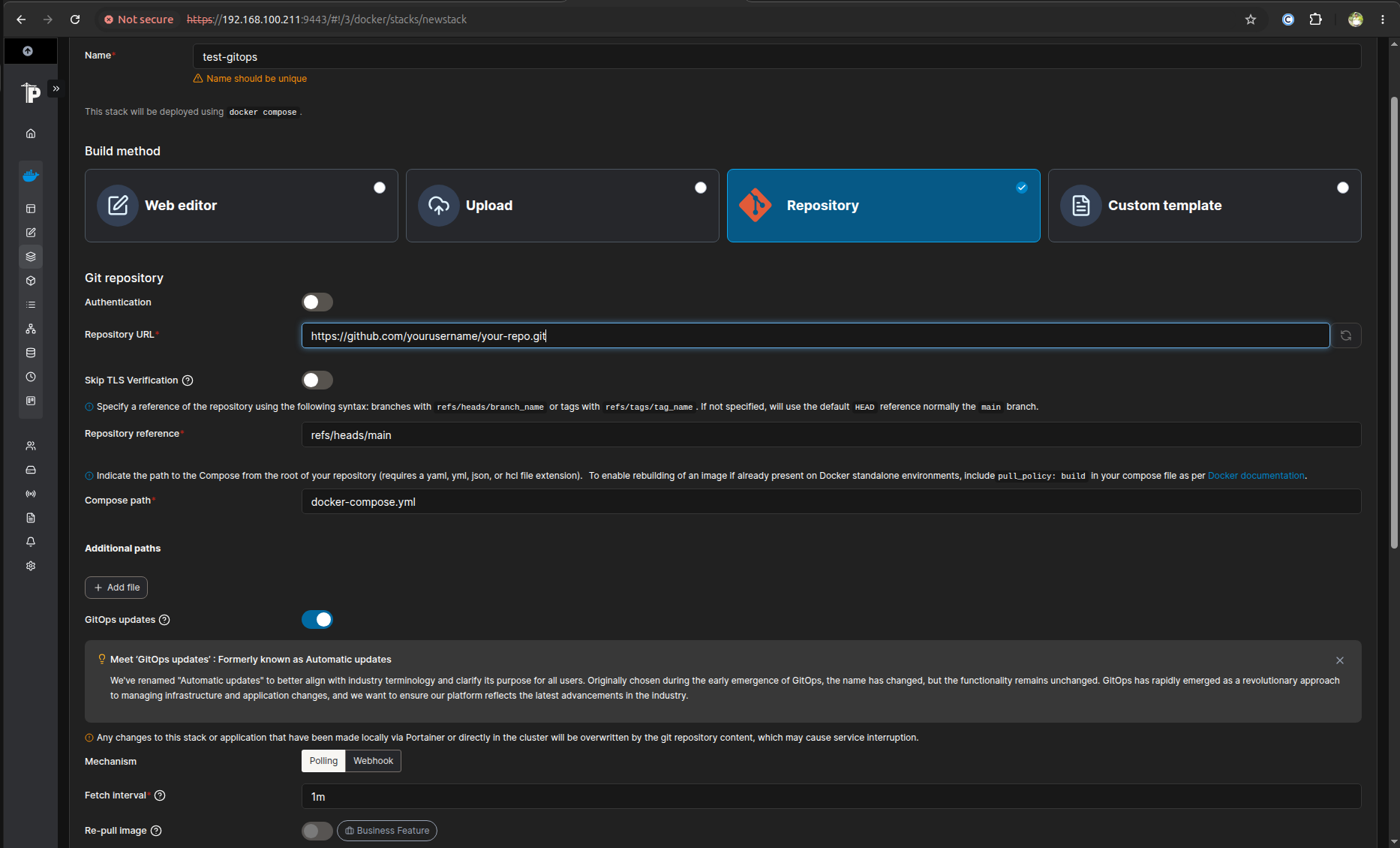
If your GitHub repo is private, then you need to enable authentication and drop in a GitHub Personal Access Token, or you can change your repo from private to public.
Enable the GitOps Auto-Pilot
Now for the magic. Scroll down to the GitOps updates section and toggle it on. Set the mechanism to Polling. Change the fetch interval to 1m.
Then hit Deploy the stack. Portainer will reach out to GitHub, pull your configuration, and spin up your app automatically.
Test the Auto-Deploy Magic
You want to see the real power of GitOps in action? Let's test it without opening a terminal.
Go to your GitHub repo and edit your docker-compose.yml file right in the browser. Change your exposed port as shown in the image below (for example, swap "8080:80" to "8081:80") and commit the change to your main branch.
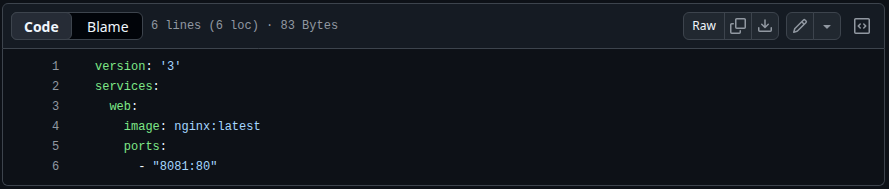
Now, do nothing. Just wait 60 seconds.
Portainer will automatically poll GitHub, spot your new commit, pull down the changes, and redeploy your container on the new port. Now, search in your browser for http://SERVER_IP:8081. The page will open as shown below.
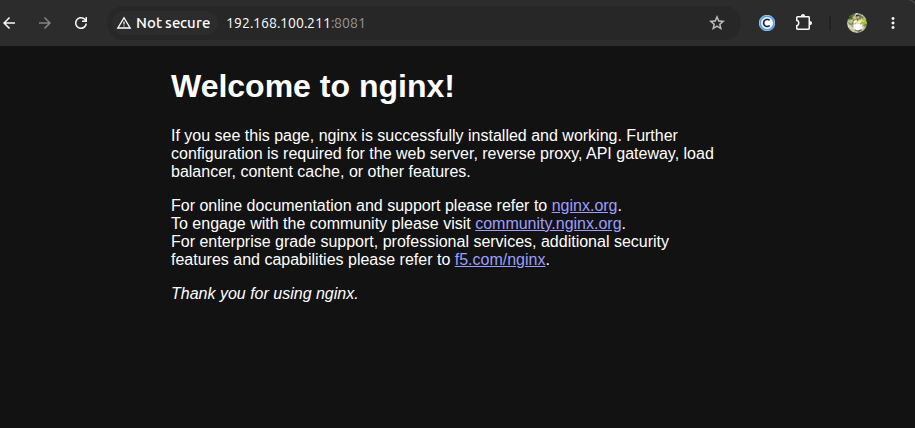
You have built your own self-hosted Vercel pipeline.
Wrapping Up
You just built a robust, self-hosted deployment pipeline. No SSH, no manual restarts, and no need to open ports to the public internet for webhooks. Just write code, push to GitHub, and let Portainer handle the rest. Welcome to stress-free homelab hosting.
