
We used the official one-liner to get the new n8n 3.0 stack up and running on the n8n one-line setup. It's perfect for evaluating the platform, but running on SQLite and exposing port 5678 over plain HTTP isn't a permanent homelab strategy. Today, we will make your n8n setup ready for real, everyday use. We are taking that deployment to production.
We will activate the AI Assistant, swap SQLite for PostgreSQL, put Caddy in front for automatic HTTPS, lock down the firewall.
Here is the complete tested playbook for a hardened n8n instance.
Waking Up the AI Assistant
Using the n8n One-line Setup article, the sandbox stack deployed is fully functional but completely inert until you provide an LLM API key. We need to inject one into the .env file.
From your terminal, run this to append your OpenAI key.
echo "N8N_INSTANCE_AI_MODEL_API_KEY=sk-ant-xxx" >> ~/n8n/.env
After adding the API key, run the command below to bounce the stack back up.
docker compose -f ~/n8n/compose.yml up -d
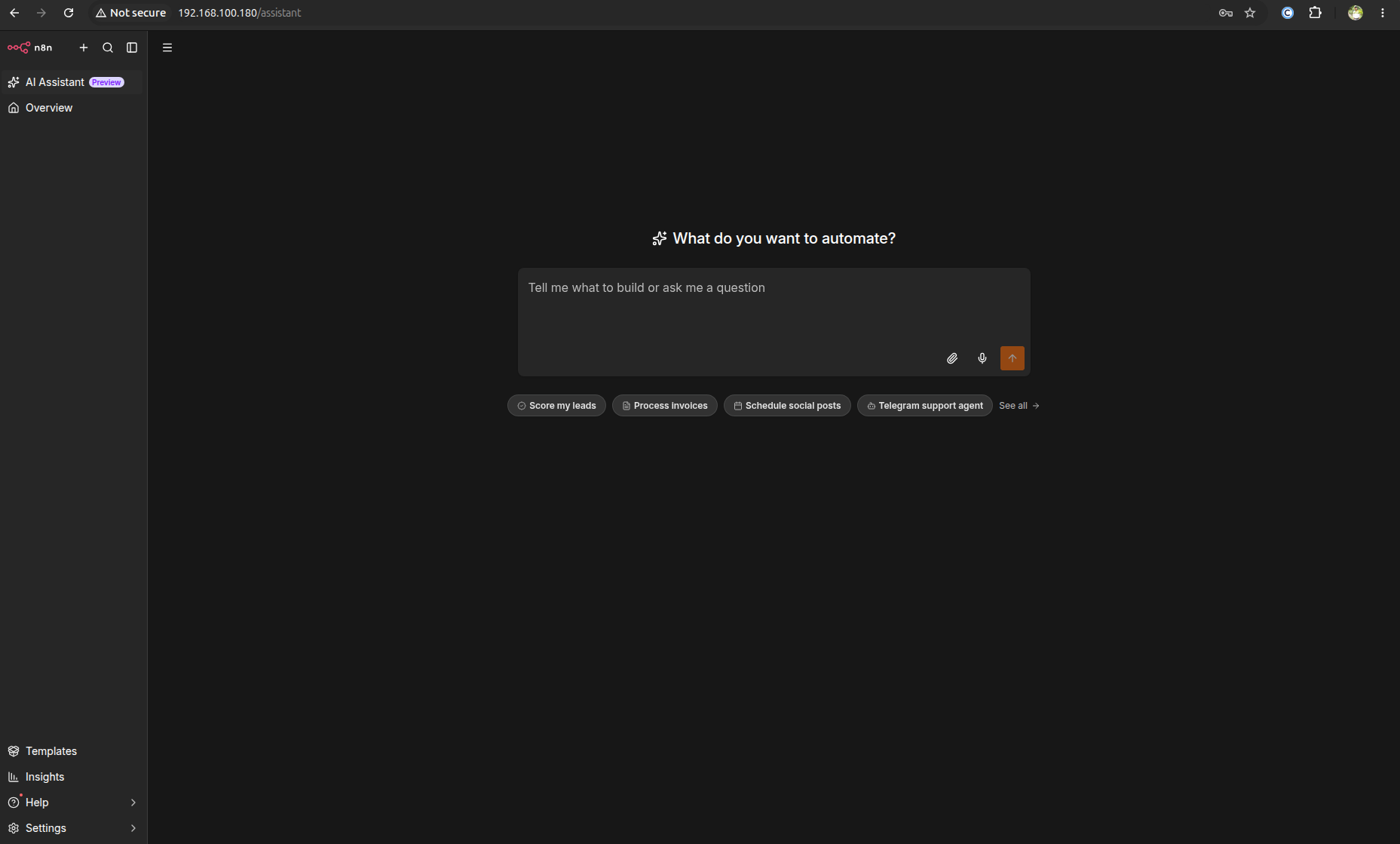
When you log into the n8n UI, you can now open the AI Assistant panel and prompt it to build workflows. For testing, if you used a dummy key, the workflow will return the error: API key is invalid. This proves that the sandbox architecture successfully reached out to the provider.
Hardening the Configuration
Before we rebuild the stack for production, we need to populate .env with our database credentials, public URL, and some security settings.
Run this block to append the required variables (replace 192.168.100.180 with your actual domain or IP).
cat << 'EOF' >> ~/n8n/.env
# Caddy & Routing
N8N_HOST=192.168.100.180
N8N_PROTOCOL=https
N8N_PORT=5678
WEBHOOK_URL=https://192.168.100.180/
GENERIC_TIMEZONE=America/New_York
NODE_ENV=production

# Database
POSTGRES_USER=n8n
POSTGRES_PASSWORD=n8n-secure-pass
POSTGRES_DB=n8n

# Security Hardening
N8N_NODES_EXCLUDE="n8n-nodes-base.executeCommand"
EOF
We also need to pin a static encryption key. If n8n auto-generates this key on boot and you ever lose the volume, your saved app credentials become unrecoverable. Generate a secure 32-character hex key and append it.
echo "N8N_ENCRYPTION_KEY=$(openssl rand -hex 32)" >> ~/n8n/.env
The Production compose.yml
We need to make three major changes to the Docker Compose file: remove the exposed port on the n8n service, add postgres:16, and add Caddy as the reverse proxy.
Rather than editing the YAML file by hand and fighting indentation, overwrite ~/n8n/compose.yml entirely with this production-ready version.
# compose-version: 1
volumes:
  n8n-data:
  sandbox-tls:
  caddy_data:
  caddy_config:
  db-storage:

services:
  postgres:
    image: postgres:16
    restart: always
    environment:
      POSTGRES_USER: ${POSTGRES_USER}
      POSTGRES_PASSWORD: ${POSTGRES_PASSWORD}
      POSTGRES_DB: ${POSTGRES_DB}
    volumes:
      - db-storage:/var/lib/postgresql/data
    healthcheck:
      test: ["CMD-SHELL", "pg_isready -h localhost -U ${POSTGRES_USER} -d ${POSTGRES_DB}"]
      interval: 5s
      timeout: 5s
      retries: 10

  sandbox-certs:
    image: ghcr.io/n8n-io/n8n-sandbox-service-api:latest
    user: '0:0'
    entrypoint: ['sh', '-c']
    command:
      - >
        bootstrap-mtls.sh --out-dir /tls --api-san sandbox-api
        --control-san-prefix sandbox-runner --world-readable &&
        chown -R sandbox-api:sandbox-api /tls/api && chmod -R a+rX /tls
    environment:
      NUM_RUNNERS: '1'
    volumes:
      - sandbox-tls:/tls

  sandbox-api:
    image: ghcr.io/n8n-io/n8n-sandbox-service-api:latest
    depends_on:
      sandbox-certs:
        condition: service_completed_successfully
    env_file: .env
    environment:
      SANDBOX_API_GRPC_TLS_CERT_FILE: /tls/api/grpc-server.crt
      SANDBOX_API_GRPC_TLS_KEY_FILE: /tls/api/grpc-server.key
      SANDBOX_API_GRPC_TLS_CLIENT_CA_FILE: /tls/api/ca.crt
      SANDBOX_API_RUNNER_CONTROL_GRPC_TLS_CA_FILE: /tls/api/ca.crt
      SANDBOX_API_RUNNER_CONTROL_GRPC_TLS_CERT_FILE: /tls/api/control-grpc-api-client.crt
      SANDBOX_API_RUNNER_CONTROL_GRPC_TLS_KEY_FILE: /tls/api/control-grpc-api-client.key
      SANDBOX_API_RUNNER_CONTROL_GRPC_TLS_SERVER_NAME: sandbox-runner-1
    volumes:
      - sandbox-tls:/tls:ro
    healthcheck:
      test: ['CMD', 'wget', '-qO-', 'http://localhost:8080/healthz']
      interval: 5s
      timeout: 3s
      retries: 5
      start_period: 10s

  sandbox-runner-1:
    image: ghcr.io/n8n-io/n8n-sandbox-service-runner-dind:latest
    privileged: true
    depends_on:
      sandbox-api:
        condition: service_healthy
    env_file: .env
    environment:
      SANDBOX_RUNNER_API_GRPC_ADDR: sandbox-api:9090
      SANDBOX_RUNNER_HTTP_BASE_URL: http://sandbox-runner-1:8080
      SANDBOX_RUNNER_CONTROL_GRPC_LISTEN_ADDR: ':9091'
      SANDBOX_RUNNER_CONTROL_GRPC_ADVERTISE_ADDR: sandbox-runner-1:9091
      SANDBOX_RUNNER_ID: runner-1
      SANDBOX_RUNNER_DOCKER_SANDBOX_IMAGE: ghcr.io/n8n-io/n8n-sandbox-service-sandbox:latest
      SANDBOX_RUNNER_REGISTRATION_GRPC_CA_FILE: /tls/runner/ca.crt
      SANDBOX_RUNNER_REGISTRATION_GRPC_CERT_FILE: /tls/runner/grpc-client.crt
      SANDBOX_RUNNER_REGISTRATION_GRPC_KEY_FILE: /tls/runner/grpc-client.key
      SANDBOX_RUNNER_REGISTRATION_GRPC_SERVER_NAME: sandbox-api
      SANDBOX_RUNNER_CONTROL_GRPC_TLS_CERT_FILE: /tls/runner/control-grpc-server.crt
      SANDBOX_RUNNER_CONTROL_GRPC_TLS_KEY_FILE: /tls/runner/control-grpc-server.key
      SANDBOX_RUNNER_CONTROL_GRPC_TLS_CLIENT_CA_FILE: /tls/runner/ca.crt
      volumes:
      - sandbox-tls:/tls:ro

  n8n:
    image: docker.io/n8nio/n8n:${N8N_VERSION}
    depends_on:
      sandbox-api:
        condition: service_healthy
      postgres:
        condition: service_healthy
    env_file: .env
    environment:
      DB_TYPE: postgresdb
      DB_POSTGRESDB_HOST: postgres
      DB_POSTGRESDB_PORT: '5432'
      DB_POSTGRESDB_DATABASE: ${POSTGRES_DB}
      DB_POSTGRESDB_USER: ${POSTGRES_USER}
      DB_POSTGRESDB_PASSWORD: ${POSTGRES_PASSWORD}
      volumes:
      - n8n-data:/home/node/.n8n

  runners:
    image: ghcr.io/n8n-io/runners:${N8N_VERSION}
    depends_on:
      - n8n
    environment:
      N8N_RUNNERS_AUTH_TOKEN: ${N8N_RUNNERS_AUTH_TOKEN}
      N8N_RUNNERS_TASK_BROKER_URI: http://n8n:5679
      N8N_RUNNERS_AUTO_SHUTDOWN_TIMEOUT: '15'

  searxng:
    image: ghcr.io/searxng/searxng:latest
    environment:
      SEARXNG_SECRET: ${SEARXNG_SECRET}
    volumes:
      - ./searxng-settings.yml:/etc/searxng/settings.yml:ro

  caddy:
    image: caddy:latest
    restart: unless-stopped
    ports:
      - "80:80"
      - "443:443"
      volumes:
      - caddy_data:/data
      - caddy_config:/config
      - ./Caddyfile:/etc/caddy/Caddyfile
Next, create the Caddyfile. If you are routing to a local IP instead of a real domain, use :80 to prevent Caddy from trying to force an SSL challenge it can't complete.
:80 {
    reverse_proxy n8n:5678
}
Note: If you are using a real domain, replace :80 with your domain like n8n.yourdomain.com. Caddy will automatically provision Let's Encrypt certificates.
Booting and Migrating
Because we are moving from SQLite to PostgreSQL, if n8n's existing internal settings file does not match the new N8N_ENCRYPTION_KEY, n8n will refuse to boot. So before bringing the new stack up, the cleanest path is wiping the old volume entirely. Use the commands below to clean it up.
docker compose -f ~/n8n/compose.yml down
docker volume rm n8n_n8n-data
docker compose -f ~/n8n/compose.yml up -d
Wait a few minutes for Postgres and the Sandbox API to report healthy. Then n8n will run its fresh schema migrations.
Then open http://192.168.100.180 in your browser.
Locking Down the Host Firewall
Docker bypasses UFW by manipulating iptables directly, but since we removed the exposed port from the n8n container in our YAML, Caddy's ports (80/443) are publicly bound.
If you are running a custom SSH port as per our standard Ubuntu playbook, substitute 22/tcp accordingly.
Lock down everything else.
sudo ufw default deny incoming
sudo ufw default allow outgoing
sudo ufw allow 22/tcp
sudo ufw allow 80/tcp
sudo ufw allow 443/tcp
sudo ufw enable
sudo ufw status verbose
Conclusion
That's it. Here ends the fight with npm to run n8n. This new Docker setup is a massive upgrade, especially with the AI sandbox and code runners completely isolated from the main app. By ditching SQLite for Postgres and hiding behind Caddy, this isn't just a test instance anymore. It is ready to handle your daily work and production. The AI Assistant can write and test code for you safely, and your host network stays locked down.
